Color gradient with different colors and different directions
This tutorial create color gradient with given color range with selected direction.
Bookmark:
Color gradient with different colors and different directions
The RGB macro selects a red, green, blue (RGB) color based on the arguments supplied and the color capabilities of the output device. The intensity for each argument is in the range 0 through 255. If all three intensities are zero, the result is black. If all three intensities are 255, the result is white.
The GetRValue macro retrieves an intensity value for the Red, Green, Blue component of a 32-bit red, green, blue (RGB) value. By calling ColorToRGB to obtain an RGB representation of a color for using with Windows API calls.
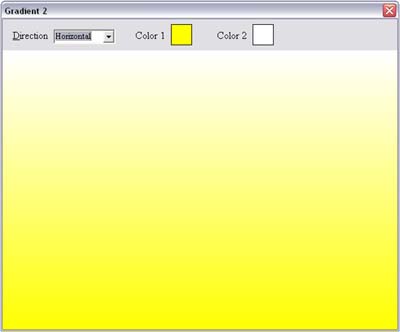
Color gradient with different colors and directions.
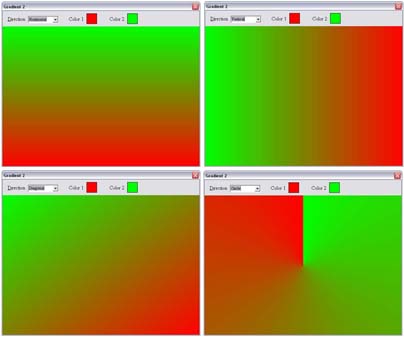
This is the main procedure doing entire color gradient according to selected colors and direction.
procedure TForm1.Update(Sender: TObject);
Var
   Xo, Yo, Max, RC, GC, BC, R, H, W : Integer;
   Angle, Radius, XStep, YStep, RStep, GStep, BStep : Real;
   Red, Green, Blue, Red1, Green1, Blue1,
   Red2, Green2, Blue2 : Integer;
begin
    { Get form size }
    H:=Image1.Height;
    W:=Image1.Width;

    { Set pen width }
    Image1.Canvas.Pen.Width:=1;

    { Set Max count }
    Case ComboBox1.ItemIndex Of
      0:Max:=H;
      1:Max:=W;
      2:Begin
            Max:=Round(Sqrt((W+1)*(W+1)+(H+1)*(H+1)))+110;
            Image1.Canvas.Pen.Width:=2;

            { Set diagonal step size }
            If H>W Then
            Begin
               XStep:=1.0;
               YStep:=2*H/Max;
            End Else
            Begin
               YStep:=1.0;
               XStep:=2*W/Max;
            End;
         End;
      3:Begin
            Max:=360*4;
            Image1.Canvas.Pen.Width:=2;

            { Set circle coodinates }
            Xo:=W Div 2;
            Yo:=H Div 2;
            Radius:=Round(Sqrt(Xo*Xo+Yo*Yo));
         End;
    End;

    { The GetRValue macro retrieves an intensity value for
    the Red component of a 32-bit red, green, blue (RGB) value. }
    Red1:=GetRValue(Shape1.Brush.Color);
    { The GetRValue macro retrieves an intensity value for
    the Green component of a 32-bit red, green, blue (RGB) value. }
    Green1:=GetGValue(Shape1.Brush.Color);
    { The GetRValue macro retrieves an intensity value for
    the Blue component of a 32-bit red, green, blue (RGB) value. }
    Blue1:=GetBValue(Shape1.Brush.Color);

    Red2:=GetRValue(Shape2.Brush.Color);
    Green2:=GetGValue(Shape2.Brush.Color);
    Blue2:=GetBValue(Shape2.Brush.Color);

    RStep:=(Red1-Red2)/Max;
    GStep:=(Green1-Green2)/Max;
    BStep:=(Blue1-Blue2)/Max;

    { Select starting color }
    { Call ColorToRGB to obtain an RGB representation
    of a color for using with Windows API calls. }
    If ColorToRGB(Shape1.Brush.Color)>ColorToRGB(Shape2.Brush.Color) Then
    Begin
       Red:=Red1;
       Green:=Green1;
       Blue:=Blue1;
    End Else
    Begin
       Red:=Red2;
       Green:=Green2;
       Blue:=Blue2;
    End;

    { Set starting color }
    RC:=Red;
    GC:=Green;
    BC:=Blue;

    Angle:=0;
    For R:=0 To Max Do
    Begin
    { set fill color }

    { The RGB macro selects a red, green, blue (RGB) color
    based on the arguments supplied and the color capabilities
    of the output device.

    The intensity for each argument is in the range 0 through 255.
    If all three intensities are zero, the result is black.
    If all three intensities are 255, the result is white.}
    Image1.Canvas.Pen.Color:=RGB(RC,GC,BC);

    { Fill area by drawing lines }
    Case ComboBox1.ItemIndex Of
       0:Begin
             Image1.Canvas.MoveTo(0,R);
             Image1.Canvas.LineTo(W,R);
          End;
       1:Begin
             Image1.Canvas.MoveTo(R,0);
             Image1.Canvas.LineTo(R,H);
          End;
       2:Begin
             Image1.Canvas.MoveTo(0,Round(R*YStep));
             Image1.Canvas.LineTo(Round(R*XStep),0);
          End;
       3:Begin
             Image1.Canvas.MoveTo(Xo,Yo);
             Image1.Canvas.LineTo(Xo+Round(Radius*Sin(Angle*(Pi/180))), Yo-Round(Radius*Cos(Angle*(Pi/180))));
          End;
    End;

    { Change fill color for each color }
    RC:=Round(Red+R*RStep);
    GC:=Round(Green+R*GStep);
    BC:=Round(Blue+R*BStep);

    { Increase angle }
    Angle:=Angle+0.25;
    End;
End;
Use this one to select color by clicking on shape. And also this will call Update procedure and update color gradient.
procedure TForm1.Shape1MouseDown(Sender: TObject; Button: TMouseButton;
Shift: TShiftState; X, Y: Integer);
begin
     ColorDialog1.Color:=Shape1.Brush.Color;
     If ColorDialog1.Execute Then
     Begin
          Shape1.Brush.Color:=ColorDialog1.Color;
          Update(Self);
     End;
end;

procedure TForm1.Shape2MouseDown(Sender: TObject; Button: TMouseButton;
Shift: TShiftState; X, Y: Integer);
begin
     ColorDialog1.Color:=Shape2.Brush.Color;
     If ColorDialog1.Execute Then
     Begin
          Shape2.Brush.Color:=ColorDialog1.Color;
          Update(Self);
     End;
end;
Use this one to update color gradient if user changes direction.
procedure TForm1.ComboBox1Change(Sender: TObject);
begin
     Update(Self);
end;
Download This Delphi Tutorials.
Download materials for this article (Delphi - Tutorials)
 Color-Gradient-Different-Colors-Directions.zip
File size: 6 KB, File type: zip
Total downloads: 645, Upload date: March 25 - 2009
m stephens :: March 25-2009 :: 03:09 PM
The download link downloads an image and not the source code. Would you please fix this.
Thanks.
Administrator :: March 25-2009 :: 07:37 PM
Hi Stephens, Thanks for bringing this to our attention, we upload the correct source code for download materials.
Thomas :: October 29-2009 :: 12:33 PM
mr mojtaba rahsepar :: December 24-2010 :: 12:04 PM
hello . please send to me the source file of this Tutorial . i can't download it.
tanks